How to set up launching MaClipHistory at startup
Never lose important data anymore: keep MaClipHistory on, restart macOS and the app will be launched on startup.
Turned on by default
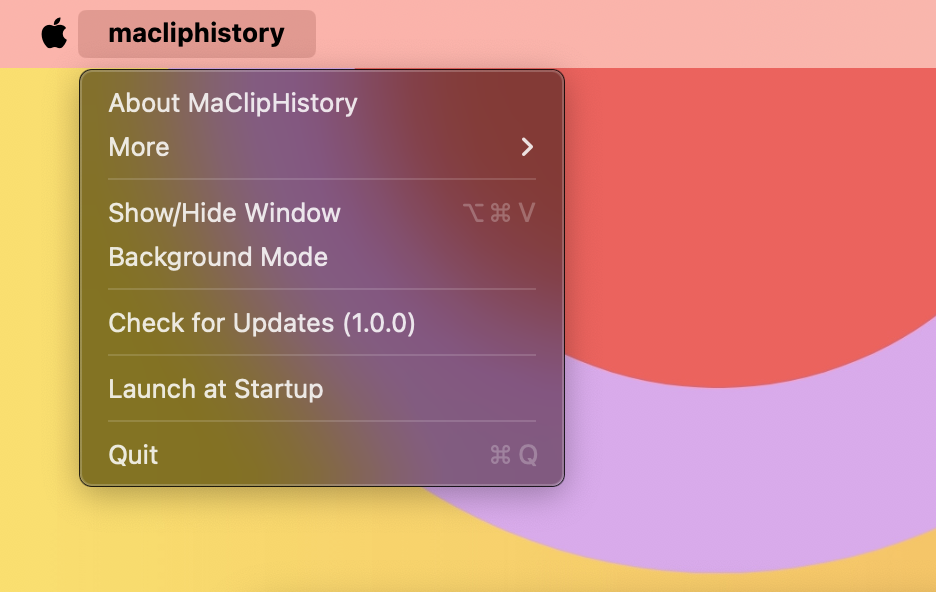
This option is turned on by default. But you may double check it, here's how. Go to the MaClipHistory menu and press Launch at Startup.
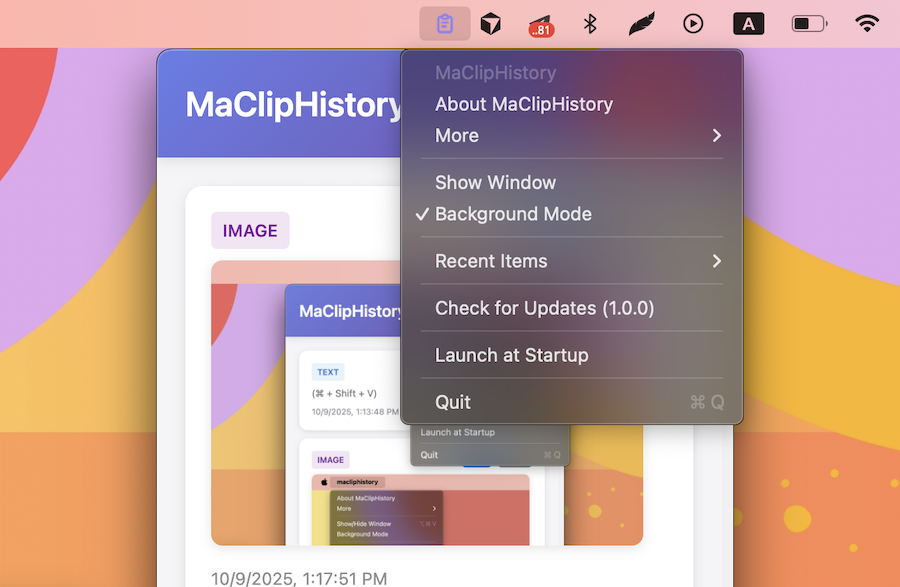
You may also do it from tray menu:
After turning it on you will see confirmation that MaClipHistory will open automatically when you log in.
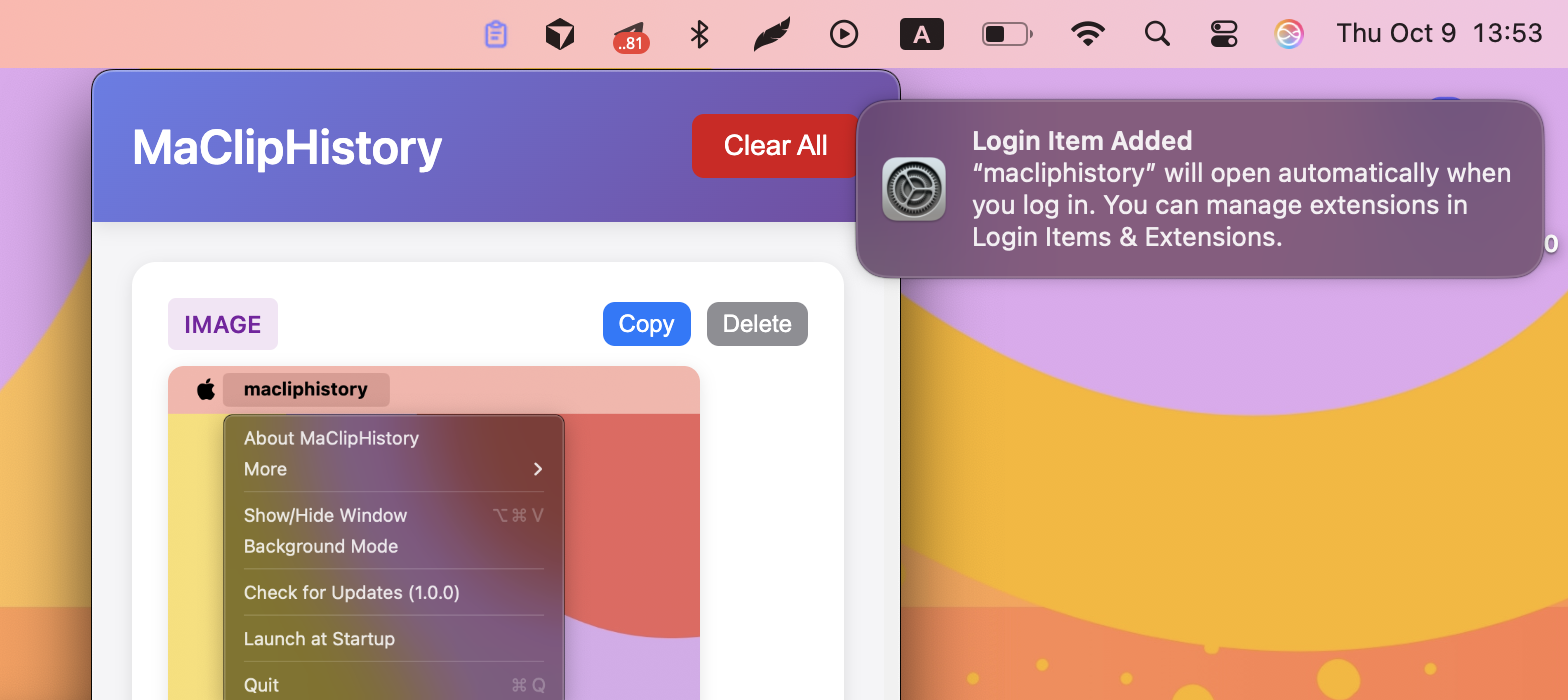
If you click on notification, you will go to System Settings - Users & Groups - Login Items and see it is there now.

In the same window you will also see the apps allowed running in background, but MaClipHistory can run in background without it (as it only listens to keyboard and doesn't perform any other operations).
Congrats!
Now you won't lose anything you copied! Stay tuned.
Try MaClipHistory Today
Experience the power of a truly private clipboard manager
Download Now - It's Free